How to View Insights on Instagram in 2025? Ultimate Guide for Analytics

Instagram has millions of active users worldwide, so it naturally attracts a huge number of businesses and creators who want to reach their audiences where they already spend time. Instagram gives these professional profiles access to Instagram Insights, an analytics tool that shows how content performs and how users interact with posts, Stories and the profile overall. By reading the numbers in Instagram Insights regularly, you can understand whether your social media work is paying off and where you need to improve.

Instagram Insights lets you see statistics for individual posts and Stories as well as account level data such as reach, engagement and follower demographics. When you know how to view and interpret these metrics, you can adjust your content strategy, refine your targeting and make more informed decisions about what to share next.

How to Access the Instagram Insights

Instagram Insights is available only to accounts that use a Business or Creator profile rather than a standard personal profile. Instagram Insights requires this switch because analytics are designed for people who use the platform in a professional way and need more detailed reporting.

Instagram Insights becomes visible after you convert your account in the settings menu. When you turn a personal profile into a Business or Creator account, Instagram starts recording performance data that you can see in the Insights section, including reach, impressions, content interactions and audience information. If you keep using a personal profile, this tool does not appear and you cannot open it.

How to View Insights on App

The Instagram app makes it simple to access Insights once your profile is set to Business or Creator. The main analytics dashboard sits directly behind the menu button on your profile page, so you do not need any separate app or website to open it.

The Instagram app shows you Insights if you follow these steps:

  1. Open the Instagram app on your phone.
  2. Go to your profile by tapping your profile picture in the bottom right corner.
  3. Tap the three line icon in the top right.
  4. Choose Insights from the menu that appears.

The Instagram app then opens an overview of your account performance with metrics such as accounts reached, accounts engaged and total followers. From this area, you can tap into each section to see more detailed information. If you have switched to a Business or Creator account and still cannot see Insights, you can contact Instagram support through the Help section to report the issue.

how to view insights on instagram

Creator Account

A Creator Account is a profile type on Instagram designed for personalities, influencers and individual content creators. A Creator Account gives you access to insights and tools that match the needs of people who grow personal brands and communities instead of traditional companies.

A Creator Account lets you choose a niche category that reflects what you share, for example blogger, artist, gamer or public figure. This label appears on your profile and helps visitors understand your content at a glance. A Creator Account also unlocks Instagram Analytics so you can see Insights for your posts, Stories and overall page activity in the same way a Business Account can.

A Creator Account looks and feels similar to a personal account in terms of profile layout but still behaves like a professional profile behind the scenes. You can connect your Creator Account to a Facebook account, run promotions and benefit from features in Instagram Creator Studio. You can request verification, set up quick replies and apply direct message filters to manage large volumes of messages more efficiently.

With this account type, you can also use branded content tools that mark sponsored posts clearly and help you collaborate with brands in a transparent way.

Business Account

A Business Account is the classic way to access Instagram Insights and run activity on the platform as an organization. A Business Account is designed for brands, stores, service providers and any company that wants to manage marketing and customer contact on Instagram.

A Business Account allows you to select a category for your business, which can be anything from restaurant to clothing store or consulting service. This category appears on your profile and sets expectations for visitors. A Business Account provides business focused stats that show how your content performs, how users behave on your page and how your audience grows or changes over time.

A Business Account lets you display contact details such as email, phone number or address, which gives customers an easy way to reach you. You gain access to Instagram Shopping, which allows you to tag products in your posts and Stories so users can tap through to see prices and purchase options. You can start video chats in direct messages to provide support or build relationships and you can request verification if your brand meets the criteria.

A Business Account can also use Creator Studio and branded content tools, which makes it easier to manage posts from a desktop, schedule content and run paid campaigns. If you plan to open a Business Account, you need to connect it to a Facebook page, because this connection powers many of the advertising and shopping features. You should also remember that Business and Creator accounts cannot be set to private, so your content remains publicly visible.

Analyzing the Analytics Tool

The Analytics tool inside Instagram Insights is divided into three main sections called Activity, Content and Audience. The Analytics tool uses these sections to organize account performance data in a way that is easy to read and compare.

The Analytics tool shows overall account performance in the Activity section, content specific results in the Content section and follower information in the Audience section. When you explore each part, you see more detail about how many people you reach, how they interact with your posts and who your followers are. Understanding how to move through these three areas is the key to learning how to view insights on Instagram in a meaningful way.

instagram insights

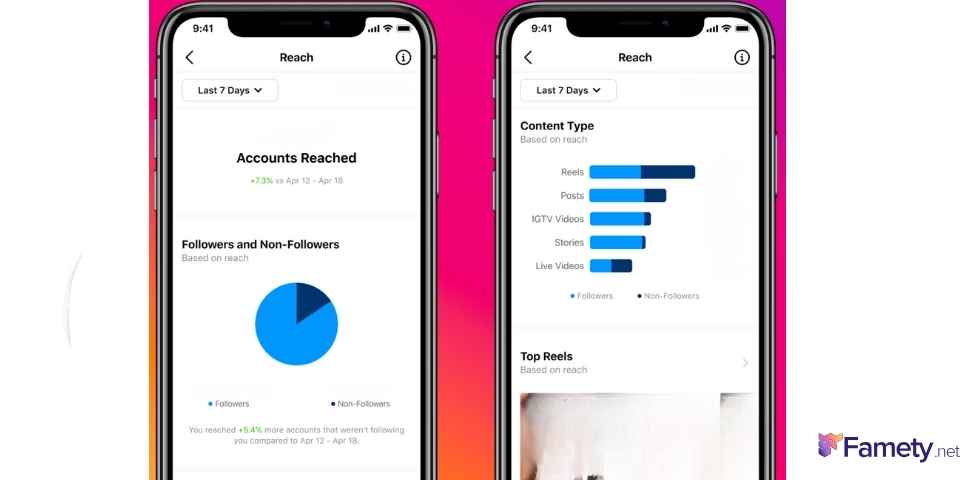
Accounts Reached

Accounts Reached is the section that shows how many people see your profile and posts within a selected time period. Accounts Reached helps you understand how far your content travels and how visible your Instagram presence really is.

Accounts Reached typically reports how many users visited your profile in the last week, how many times all of your posts were viewed in that same period and how many individual accounts you reached overall. If you run ads, this section also shows the performance of your advertising content over the chosen time frame. By comparing these values from week to week, you can see whether your reach is growing, shrinking or staying stable.

Accounts Engaged

Accounts Engaged is the part of Insights that focuses on how people interact with the content you share. Accounts Engaged tells you not just who saw your posts and Stories but who actually liked, commented, saved, shared or otherwise engaged with them.

Accounts Engaged shows how your regular feed posts, Stories and paid promotions perform in terms of engagement and access. On the main screen of this section, you usually see the performance of the most recent posts you have shared during the last week. For each content type, there is a See All button that lets you open a deeper view.

Accounts Engaged becomes more powerful when you tap See All and review the performance of your posts one by one. When you tap any post in this list, you can see detailed metrics such as likes, comments, saves, shares, profile visits and follows generated by that single piece of content. This level of detail helps you understand which posts work best and which ones underperform, so you can refine your content strategy.

Accounts Engaged is especially important for Stories because Story data is stored for only 14 days. You can analyze Story performance only during this time window, which makes it important to check your Story Insights weekly or every two weeks and record your data. By tracking which Story formats and topics work best, you can adjust quickly before old results disappear.

Total Followers

Total Followers is the tab where Instagram shows demographic details and behavioral patterns of your audience. Total Followers gives you a clear picture of who follows you, where they live and when they are most active on the platform.

RECENT POSTS
How To Schedule Posts In Advance On Instagram

Summary by Editor: Scheduling Instagram posts boosts consistency and engagement without manual effort. Using Meta’s Creator Studio or other tools...

What Does Flag Mean On Instagram?

Summary by Editor: On Instagram, “flagging” is another term for reporting a post or user. The flag icon under posts is actually a save feat...

Total Followers breaks down your audience by gender, age groups, cities and countries, along with the days and times when followers are online most often. This information helps you see whether you are reaching the target audience you want and whether there are groups you may want to attract more deliberately.

Total Followers is very effective for shaping your content and posting schedule. When you know your demographic structure and peak activity times, you can publish posts and Stories when your audience is most likely to see them and tailor your messages to the interests of your main follower segments. Instagram is a strong medium for sales and brand building, but data driven decisions in this section make your advertising and marketing efforts more efficient.

Using Instagram Insights To Improve Your Strategy

Instagram Insights is a practical tool for turning raw numbers into better content decisions and stronger results. Instagram Insights gives you feedback about every area of your account, from reach to engagement to audience makeup, so you can see clearly what works and what needs adjustment.

Instagram Insights encourages you to test different formats, topics and posting times, then measure the outcome instead of guessing. You can experiment with new post styles, different Story sequences or varied calls to action, then watch how Accounts Reached and Accounts Engaged respond. If your performance is lower than you expect and you want to grow faster, you can explore external growth methods such as buying Instagram followers from services like Famety, but combining any paid growth with organic content and real engagement always creates a healthier, more sustainable profile over the long term.

Frequently Asked Questions About Instagram Insights

Frequently asked questions about Instagram Insights provide quick answers to the most common problems people face when they try to use analytics on the platform. Frequently asked questions help you confirm what is possible and what is not with different account types and content formats.

Why can’t I view Instagram Insights?
You cannot view Instagram Insights if you use a personal account, because Instagram does not provide analytics for personal profiles. You need to switch your account to either a Business or a Creator profile in the settings, then return to your profile and open the Insights menu from the three line icon.

Can I view insights on my personal Instagram account?
You cannot view insights on a personal Instagram account, because this profile type does not include the analytics feature. You must have either a Business account or a Creator account to see performance data for your posts, Stories and audience.

How to view post insights on Instagram?
You can view post insights on Instagram after you switch your account to a Business or Creator profile. You open your profile, tap on one of your posts and then tap the View Insights button under the image or video. This screen shows you metrics such as likes, comments, saves, shares, profile visits and reach generated by that specific post.

How to view insights without a business account?
You can view insights without a Business account only by using a Creator account, which also unlocks analytics. You cannot view insights with a personal account, so if you want analytics without running a formal company page, switching to a Creator account is the best option.

How to view story insights on Instagram?
You can view Story insights on Instagram by going to your profile, tapping the three line icon and choosing Insights, then scrolling down to the Stories section. You can also open any active Story, swipe up and see its reach and interactions directly. Inside the Insights area, you can review Story performance over the last 14 days and use those numbers to improve future Story content.

Was this helpful?

Yes
No
Thanks for your feedback!
Yasmin Talley

Posts: 51

Yasmin, a 30-year-old writer for Famety, is a social media specialist and loves sharing her knowledge. She has been writing about social media since the day started using them. She will teach you every fine detail and answer the most common questions.

RECENT POSTS
1 Comments on How to View Insights on Instagram in 2025? Ultimate Guide for Analytics

Your email address will not be published. Required fields are marked *

(Total: 23 Average: 5 )

1 Comment

  1. Ulav Johnson
    Ulav Johnson

    Never knew viewing insights on Instagram was this easy. Better read more of your articles to be amazed more often.