- Check and enable device notification permissions for Instagram so push alerts can reach your home screen.
- Ensure in-app notification settings in Instagram are turned on for likes, comments and messages.
- Disable Do Not Disturb or Focus modes that silence alerts on both iPhone and Android.
- Turn off battery saver and enable background refresh to allow Instagram to fetch new notifications reliably.
Instagram notifications are meant to keep you updated when someone likes your post, comments, sends a message or tags you. But sometimes users find they no longer get alerts even when everything seems switched on. This problem can be frustrating, especially if you rely on Instagram for social updates or business interactions.
There are several reasons why notifications may be missing. Some are related to settings on your phone, others are caused by Instagram’s in-app settings or even device battery and background restrictions. So, let’s break down what might be going wrong and how to fix it step by step.
Why Instagram May Not Be Sending Alerts
Before diving into solutions, it helps to understand the main reasons notifications may stop working;
- Notification permissions aren’t enabled on your phone
- In-app notification settings are turned off
- Do Not Disturb or Focus mode is blocking alerts
- Battery optimization is limiting background activity
- Instagram app bugs or outdated version
- Poor internet connection or network issues
Users often report that notifications sometimes only appear when the app is open, or only on one device but not another, even when settings are all enabled. Many device-level and network issues also can affect notifications unexpectedly.
Check Your Phone’s System Notification Settings



One of the most common reasons Instagram messages and alerts don’t appear is that your operating system is blocking them.
On iPhone
- Open the Settings app.
- Tap Notifications.
- Scroll to Instagram.
- Ensure Allow Notifications is ON.
- Make sure Lock Screen, Notification Center, and Banners are checked.
- Turn ON Sounds and Badges if you want sound alerts.
On Android
- Go to Settings > Apps & Notifications.
- Find and tap Instagram.
- Tap Notifications.
- Turn ON all relevant toggles (Posts, Comments, Messages, Likes).
- Make sure alerts are also allowed outside of “Silent” or “Block” modes.
If system notifications are disabled, Instagram will never send alerts even if you enable them inside the app. Controle these first before moving on.
Make Sure Instagram App Notifications Are Enabled
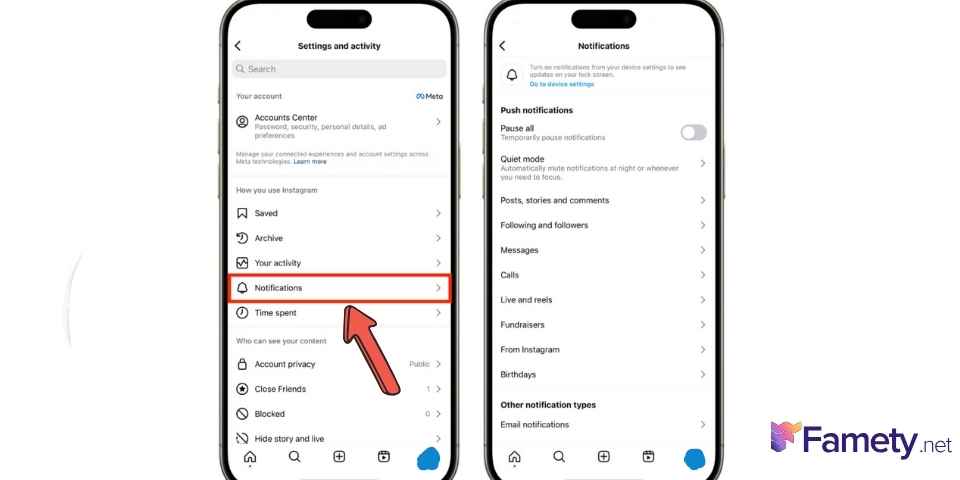
Instagram has its own notification preferences that can override system settings. If you’ve previously turned off certain alert types, you may not get likes or message alerts.
- Open the Instagram app.
- Go to your Profile (bottom right).
- Tap the menu icon (☰) at the top right.
- Tap Settings and Privacy.
- Tap Notifications.
- Choose categories like Posts, Stories, Comments, Messages and Live Videos and make sure alerts are enabled.
Sometimes these in-app toggles are accidentally turned off, especially after app updates.
Disable Do Not Disturb or Focus Modes
Modern phones include modes that silence alerts. If your phone is in Do Not Disturb or Focus Mode, push notifications may be blocked entirely, even for Instagram.
- iPhone: Settings > Focus > Do Not Disturb. Turn it off or add Instagram as an allowed app.
- Android: Swipe down from the top, look for the DND icon, and turn it off. You can also check notification exceptions to allow key alerts.
These modes are useful, but if misconfigured, they hide alerts without warning.
Check Battery Saver and Background Restrictions
Phones limit background activity when low on battery or when battery-saving modes are enabled. This can prevent Instagram from fetching new alerts.
On Android
- Go to Settings > Apps > Instagram > Battery
- Set background usage to Unrestricted or disable optimization for Instagram.
- Turn off aggressive battery saving features.
On iPhone
- Turn off Low Power Mode in Settings > Battery.
- Make sure Background App Refresh is enabled for Instagram.
These settings allow the app to run in the background and also send notifications reliably.
Update or Reinstall the Instagram App
Notifications may stop if you are using an outdated or corrupted version of the app. Updating or reinstalling Instagram clears bugs that can disrupt alerts.
- Visit the App Store or Google Play and check for Instagram updates.
- If updating doesn’t fix the issue, uninstall and reinstall the app.
- Log back in to refresh all settings and permissions.
This often resolves glitches, especially if alerts stopped after an app update.
Check Network and Internet Settings
Your phone needs a stable internet connection to receive push notifications. Slow Wi-Fi, weak cellular data, or intermittent connections may delay or block alerts.
- Switch between Wi-Fi and mobile data to test.
- Restart your router if you’re on Wi-Fi.
- Ensure mobile data is enabled for Instagram.
Poor connectivity is one of the simplest but often overlooked causes of missed notifications.
Try Logout, Restart, and Simple Troubleshooting
Sometimes the easiest solutions work best.
- Restart your device to refresh all connections.
- Log out and log back into Instagram.
- Check your device’s OS updates newer updates often fix notification bugs.
- Clear the app cache (Android) or reinstall if needed.
If notifications still don’t arrive, it might be caused by a bug in the app or a device-specific software issue.
Summary
Notifications are an essential part of how we use Instagram, and not receiving them can be frustrating. The issue usually stems from either device settings, in-app preferences, or battery restrictions. By methodically checking system permissions, in-app notifications, Do Not Disturb modes, battery settings, app updates and network connectivity. Don’t worry though most notification problems can be fixed.