Instagram usually blocks a new account for one of six reasons: you already have 5 accounts linked to the same email or phone number, you have 5 accounts logged in on the device, your IP address hit a rate limit from too many signups in a short time, a previous account got banned and the fingerprints match your device, Instagram flagged the signup as suspicious behavior, or a temporary bug in the app itself is failing the request. In 2026 the hard caps are 5 accounts per email, 5 per phone number, and 5 logged in per device. This guide walks through each cause and the exact fix that works today.
If you keep seeing “Try again later,” “Sorry there was a problem,” or the signup screen simply loops back on itself, the fix depends on which specific block Instagram triggered. Here is how to identify yours and get through it.
The 2026 Instagram Account Limits That Most Guides Get Wrong
Old tutorials still say “you can only have one account per email” or “phone numbers must be unique.” Neither is accurate in 2026. The current limits are precise and worth memorizing.
Each email address can link to up to 5 Instagram accounts. Each phone number can also link to up to 5. A single device can have up to 5 accounts logged in at the same time, switchable with two taps through the profile menu. You can create more than 5 total accounts as long as each one uses different email and phone credentials, but you can only be signed in to 5 on a given device at any moment.



These limits exist to prevent bulk fake account creation. They are enforced automatically by Instagram’s signup system, and hitting any of them produces a signup error that Instagram deliberately keeps vague to avoid tipping off spam operations.
If you have hit the 5 per email limit, the message often reads “This email is already associated with an account” even though you know you have used it before. If you have hit the 5 per device limit, the app quietly refuses to add another logged in profile.
Reaching the 5 Account Limit on Your Email, Phone, or Device
To check whether you have hit the email or phone limit, sign in to the accounts you still remember and count them. If you get to 5, you cannot create another with the same credentials. Instagram does not show a list of every account tied to your email, so this audit has to be manual.
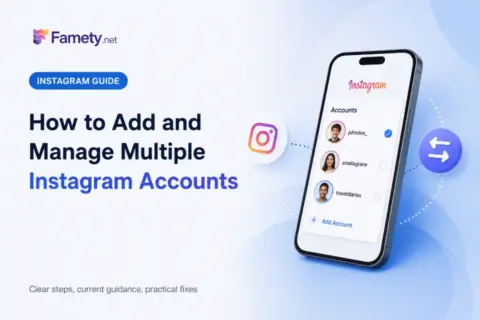
To check the device limit, open Instagram, tap your profile, tap your username at the top, and see how many accounts appear in the dropdown. If you already have 5, add account is grayed out or produces an error.
The fix for the email or phone cap is to use a fresh secondary email or a virtual phone number. Gmail, Outlook, and iCloud all let you spin up a new address in about a minute. Google Voice and TextNow offer free virtual numbers in the US that Instagram accepts. For accounts you plan to run seriously, avoid disposable numbers because they often get recycled and can lock you out of recovery later.
The fix for the device cap is to log out of one existing account first, then add the new one. Or use a different device entirely for the new account and log it in on your primary device later.
Temporary IP Address Blocks and How to Clear Them
Instagram tracks the IP address of every signup. If several new accounts appear from the same IP in a short window, the system flags the pattern as suspicious and blocks further signups from that IP for a temporary period, usually a few hours to a few days.
This happens most on shared networks: office Wi Fi, university networks, cafe hotspots, and family home networks where multiple people already have accounts. The block is not tied to your specific device, it is tied to the IP address, so switching devices on the same network does not help.
The clean fix is to switch networks. Turn Wi Fi off and use cellular data on your phone, or move to a different Wi Fi network entirely. Both give you a new IP address. VPNs can work, but use a reputable one because free VPNs often route through IPs that Instagram already blacklisted for previous spam.
If you are patient, waiting 24 hours before trying again usually clears the block without any network change. During the wait, avoid attempting any signup at all because repeated failed attempts extend the block.
Previous Ban History and Device Fingerprinting
Instagram does not just track email, phone, and IP. It also fingerprints your device using a mix of hardware identifiers, installed app patterns, screen resolution, timezone, and language settings. If a previous account you owned was banned for community guideline violations, Instagram often ties the device fingerprint to the ban and refuses to let you create a new account from the same phone.
You will not get a clear notification about this. The signup usually looks like it is working, then loops back to the start with a generic “Try again later” message. If a fresh email and phone number and network still cannot get you through, device fingerprinting is the most likely cause.
The fix is harder. A factory reset on the phone helps some users, though Instagram has become better at re identifying the device after reset. Using a completely different physical phone is the most reliable path. If you go this route, avoid signing in to old accounts on the new phone because that creates a fresh fingerprint link that Instagram tracks.
If your old account was banned by mistake, appealing that ban is worth the effort before you try to create anything new. Our post on how to recover your TikTok account covers a similar recovery process on a different platform that has parallels here.
The “Try Again Later” Error: What It Actually Means and How to Break the Loop
“Try again later” is Instagram’s catch all block message. It appears when the system flags any of the causes above, and it does not tell you which one. The instinct is to keep tapping Sign Up hoping the next attempt works. Do not. Every failed attempt extends the block.
The right sequence: stop attempting signups immediately, wait 24 hours, and change something meaningful before you try again. Meaningful changes include a different email, a different phone number, a different network (Wi Fi to cellular), and ideally a different device. If you change nothing, the retry will fail even after the wait.
While you wait, do a few housekeeping steps. Update Instagram to the latest version. Clear the app cache from your phone settings. If you keep seeing the loop even with fresh credentials, uninstall the app fully and reinstall from the app store. On iOS this is App Store, hold the icon, delete, then reinstall. On Android it is Settings, Apps, Instagram, Uninstall, then Play Store install.
For persistent problems that never clear, contacting Instagram Support through the Help Center is a last resort. Responses take a week or more and mostly repeat the general guidelines, but occasionally a real agent can lift a block.
Verification Loops: When Instagram Asks for a Phone or Email That Cannot Be Verified
A common variant of the block is a verification loop. You enter a phone number, Instagram sends a code, you enter the code, and Instagram says the code is wrong. Or you enter an email, get a code, enter it, and see the same error again.
The most common cause is a number or email that has been used too recently on a banned or flagged account. Instagram accepts the code but rejects the association. The fix is a completely fresh phone number or email that has never touched Instagram before.
Another cause is a delay in the code arriving. If the SMS takes more than 15 minutes, the code may have expired by the time you enter it. Request a new code rather than typing the old one.
Some virtual number providers have been blacklisted for bulk account creation. TextFree and free tiers of Google Voice generally work in 2026. Paid virtual number services aimed at business use tend to work more reliably.
Fixing Signup Bugs Caused by the App Itself
Not every block is a policy block. Sometimes the Instagram app has a bug that fails signups even for accounts that would normally succeed. Signs of a bug rather than a policy block: the signup screen glitches visually, freezes on a specific step, or shows a generic error that mentions “network” instead of “account.”
Fix the app first before you try again. Force close Instagram. Clear the cache from your phone settings. Update to the latest version through the app store. Restart the phone. Try the signup again on a stable Wi Fi connection.
If the bug persists across multiple restarts, use Instagram’s web signup at instagram.com instead of the mobile app. The web version uses a different code path and often succeeds when the mobile app fails.
Our post on how to change age on TikTok covers a parallel signup and verification issue on a different platform where the mobile app fails and the web version works.
Creating Multiple Accounts Safely Without Triggering Blocks
If you have a legitimate reason to run more than one Instagram account (personal plus business, multiple brands, agency work), a few habits keep you out of trouble.
Space signups out. Do not create two accounts on the same day from the same device. Instagram flags rapid succession as bot behavior even when it is legitimate. One account a week is a safe rhythm.
Use unique credentials for each account. Fresh email, fresh phone number, distinct profile info. Do not reuse the same profile picture across all your accounts, and do not follow the exact same list of accounts from each one.
Run each account on a real cellular data or home Wi Fi connection at least occasionally. IP fingerprinting is friendlier to accounts that show up from ordinary consumer networks than to accounts that only ever appear from data center IPs.
For accounts you want to grow, treat them as real accounts from day one. Post real content, engage with real accounts, and build a real audience. Accounts that behave like bots get purged in the next sweep regardless of how carefully you created them.
After Your New Account Is Live: The First 7 Days That Set the Growth Curve
Getting past the signup block is only the first hurdle. What you do in the first week determines whether the new account grows or stalls. Instagram evaluates new accounts aggressively in the first 7 to 14 days and decides how much organic reach to give your content based on that early signal.
The stack that works in the first week: complete your profile fully (bio, profile picture, one link), publish three high effort posts in the first three days, and follow 30 to 50 relevant accounts to signal your niche to the algorithm. Then boost the strongest of those first posts so Instagram sees real engagement, not just an empty profile.
Real Instagram followers, Instagram likes, and Instagram views from Famety help that first week look credible without asking for a password. For creators testing the waters on a fresh account before committing to a paid push, the free Instagram followers trial is a low friction way to see what a small early boost does to a brand new profile. Getting the first week right compounds for months afterward, so the effort is worth it.
FAQ
Why does Instagram say my email is already in use?
Instagram allows up to 5 accounts per email address. If your signup is rejected because the email is already linked, you have hit the 5 account cap on that email even if you do not remember creating all of them. The fix is to use a fresh email that has never touched Instagram, or recover the old accounts and delete the ones you no longer need.
How long does a temporary block on Instagram signup last?
Most IP or behavioral blocks last between a few hours and a few days. If you attempt signups repeatedly during the block, the wait extends. Stopping all signup attempts for 24 hours and then changing something meaningful (new network, new email, new phone) usually clears it. Rare cases tied to device fingerprinting can last much longer.
Can I create multiple Instagram accounts on the same phone?
Yes, up to 5 accounts can be logged in on a single device and switched with two taps through your profile menu. If you want to run more than 5, you either have to log out of one before adding another, or use a second physical device for the extra accounts.
What should I do if Instagram won’t let me sign up at all?
Change three things in the following order: use a fresh email that has never touched Instagram, use a fresh phone number, and switch networks (Wi Fi to cellular or vice versa). If that still fails, try the web signup at instagram.com instead of the mobile app. If none of that works, the block is likely tied to device fingerprinting from a previously banned account, and a different physical phone is the fix.
Do virtual phone numbers work for Instagram signup in 2026?
Some do, some do not. Google Voice, TextFree, and paid virtual number services aimed at businesses generally work in 2026. Free disposable number services often fail because Instagram has blacklisted them for bulk fake account creation. For any account you plan to keep long term, avoid disposable numbers because they get recycled and can lock you out of account recovery later.