- Instagram lets you add GIF animations directly in comments from the mobile app.
- You can find GIFs by tapping the GIF icon next to the comment box and searching keywords.
- The feature may not show if your app is outdated or the rollout has not reached your account yet.
- GIF comments help boost engagement and convey emotion more vividly than text alone.
GIFs have become one of the most popular ways to express emotion on social media. They help convey feelings in a fun way that plain words sometimes cannot. Instagram now supports commenting with GIFs directly from your phone using the built-in GIF feature. This allows users to leave animated reactions and make their comments more engaging. GIF comments can add humor, excitement, and personality to conversations on posts and reels.
In this guide you will learn how to comment with GIFs on Instagram step by step, tips for finding the right animation, why you might not see the GIF option, and how to make the most of this feature across devices. Let’s get started.
What Are Instagram GIF Comments?
GIF comments are animated images you can post in the comment section under Instagram posts. Instead of typing text, you pick a looping image from Instagram’s GIF library powered by GIPHY. This makes your reaction more dynamic and eye-catching than a text or emoji reply.
Currently Instagram GIF comments work in the mobile app on iPhone and Android. The desktop web version does not yet support inserting GIFs directly in comments.
Why You Might Want to Use GIFs in Comments



Adding GIFs to your comment section is fun, but it also has some real benefits:
- Better expression: GIFs help you show emotions like laughter, shock, or excitement more vividly than text alone.
- Boost engagement: Animated comments attract attention and invite others to respond.
- Stand out: A well-chosen GIF can make your reaction more memorable than a simple emoji.
- Match tone: GIFs help set tone quickly, especially when sentiment is tricky to convey in words.
GIF comments are especially useful when you want to support a friend’s post, react to a trend, or inject a bit of personality into a public thread.
How to Add GIFs on Instagram Comments (Mobile)
Here’s the step-by-step process to add a GIF to Instagram comments on your phone:
- Open the Instagram app and sign in to your account.
- Find the post or reel where you want to comment.
- Tap the comment icon (speech bubble) below the content.
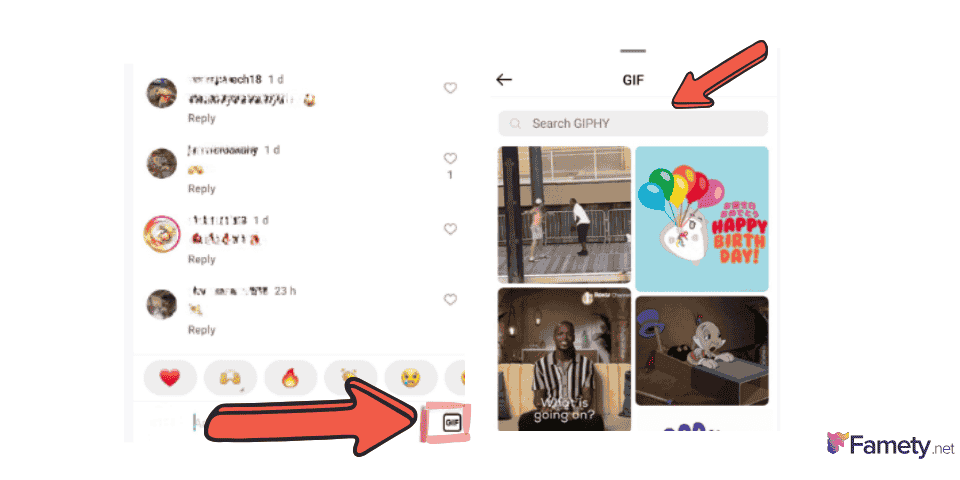
- In the comment field, look for the GIF icon next to the text box.
- Tap the GIF icon to open the GIF search interface powered by GIPHY.
- Search or browse keywords to find the animation you want.
- Tap your chosen GIF, and it will appear in the comments thread.
And that’s it. Your animated GIF will be posted just like a regular comment, making the interaction livelier.
How to Choose the Right GIF
Finding the right GIF can make your comment more effective. Here are tips to choose well:
- Use relevant keywords: Typing keywords like “laugh,” “wow,” or “heart” will help you find GIFs that match your reaction.
- Match tone with context: If the post is funny, pick a fun GIF. If it’s serious, choose something supportive or calm.
- Avoid spammy GIFs: Try not to post the same GIF repeatedly in the same thread.
GIF search is powered by GIPHY, so you get access to millions of animations that cover every mood and reaction you can imagine.
Can You Add GIF Comments on Desktop?
At this time you cannot add GIFs to Instagram comments from a desktop web browser. The GIF feature only appears in the mobile app. If you try to find a GIF icon on the desktop comment box you will not see it.
If Instagram updates this feature for web users in the future, the process may change, but for now the mobile steps above are the only way to add animated comments.
What If You Don’t See the GIF Option?
Not all users see the GIF option right away. Here are some common reasons:
- App not updated: Make sure you are using the latest version of the Instagram app, because older versions may not show the GIF button.
- Slow rollout: Instagram often releases new features gradually, so you might not have access yet.
- Account type differences: Some users report differences between personal and business profiles when features are first rolled out.
- Device limitations: Older devices or operating systems may not support new interface elements like GIF icons.
If you can’t see the GIF button, try updating the app, logging out and back in, or reinstalling Instagram as a simple refresh.
How to Remove or Delete a GIF Comment
If you posted a GIF by accident or change your mind, deleting it is easy:
- Locate your GIF comment in the thread.
- Swipe left on your mobile device until a trash icon appears.
- Tap the trash icon to delete the GIF.
This works the same way you would delete any text comment. You can also undo immediately if you delete it by mistake.
GIF Comments vs Stickers
Instagram also offers stickers in stories and direct messages, but GIF comments are different because:
- They appear directly in post comment threads.
- They are selected from the integrated GIF library.
- You cannot upload your own GIF file from your device.
Both tools let you express yourself with visuals, but GIF comments are a step beyond simple stickers for public interaction.
Tips for Using GIFs Without Overdoing It
While GIFs are fun, too many can clutter a thread or distract from meaningful conversation. Try these tips:
- Use GIFs sparingly and where they match emotion.
- Combine with text reactions around GIFs in other platforms when needed.
- Avoid posting the same GIF repeatedly in one thread.
This keeps your comment section readable and enjoyable for others.