- To check Instagram analytics you must first use a Business or Creator account so Insights are visible.
- Insights include key metrics like reach, impressions, engagement and audience demographics.
- Post insights show likes, comments, saves and reach for each piece of content you publish.
- Review analytics after posting and weekly to see trends that will improve your strategy.
Instagram analytics is the key to understanding how your content performs and how your audience engages with your posts. Without clear insights, you are posting in the dark. When you check analytics, you get real data on views, likes, saves, reach and follower trends. This information helps you make smarter decisions about what to post and when.
Whether you are a small creator, a business owner or just curious about your Instagram growth, checking analytics regularly gives you a solid advantage. In this article, we will walk through how to access Instagram analytics, what each metric means and how to use data to grow your presence.
What Are Instagram Analytics and Why They Matter
Instagram analytics are statistics that show how people interact with your content. Insights include metrics like views, reach and impressions, saves, shares, follower growth and profile activity. These figures help you understand what types of posts work best and who your audience is.
Using analytics you can spot trends, see what content resonates and adjust your strategy accordingly. For example, if you post a video that gets more views than usual, analytics can tell you if it was seen by new users or existing followers. With this knowledge you can refine your content plan and improve results over time.
Business vs Creator Account



To access detailed analytics on Instagram, you need either a Business account or a Creator account. Personal accounts have limited access to insights, so switching to one of these is the first step.
To switch:
- Go to your profile
- Tap the menu icon
- Tap Settings and privacy
- Tap Account type and tools
- Choose Switch to Business account or Switch to Creator account
After switching, Instagram will unlock analytics features that help you track performance and growth.
How to Access Instagram Analytics
Once you have a Business or Creator account, you can access analytics in two main ways:
Insights on the Instagram App
- Open the Instagram app
- Go to your profile
- Tap the three lines in the top right
- Tap Insights
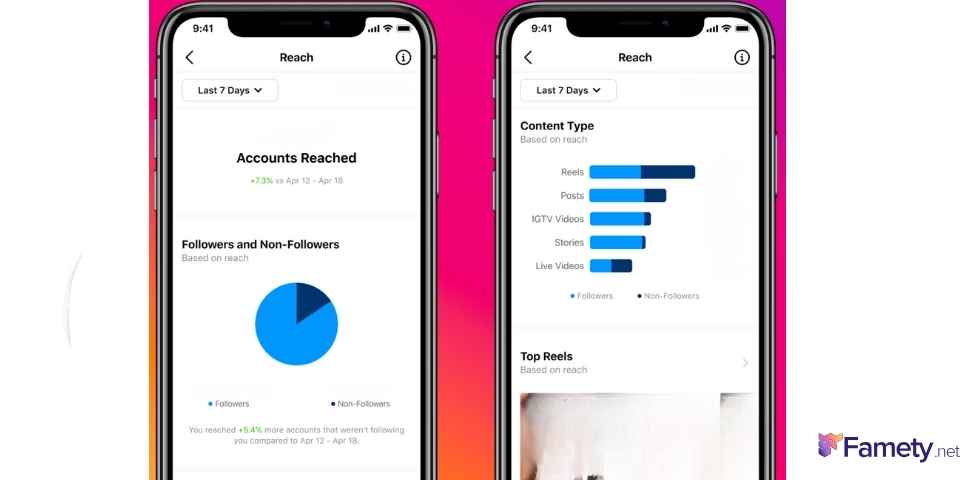
You will see an overview of your recent activity. This screen shows metrics for content, activity and audience. Below that are deeper insights for posts, reels, stories and promotions.
Insights for Individual Posts
To view analytics for a specific post:
- Open the post
- Tap View Insights below the image or video
This will show you detailed metrics like:
- Likes
- Comments
- Shares
- Saves
- Reach
- Impressions
Each of these numbers tells you how users interacted with that piece of content. Saves and shares are particularly valuable because they show strong interest from followers.
Key Instagram Metrics Explained
Knowing how to find analytics is only half the battle. You also need to understand what each metric means.
Reach
Reach is the number of unique accounts that saw your content. A higher reach means you are exposing your post to more people. If reach rises over time, your content is getting more visibility outside your existing followers.
Impressions
Impressions count how often your content was shown, including repeat views by the same user. This metric helps you see how often people revisit your content.
Engagement
Engagement measures interactions like likes, comments, saves and shares. It reflects how much people interact with your content beyond just viewing it.
Follower Growth
This shows changes to your follower count over time. If certain posts lead to spikes in followers, you can replicate those styles or topics.
How to Track Stories and Reels Insights
Instagram analytics are not limited to posts. You can also check insights for stories and reels.
Stories
To see story analytics:
- Open your story
- Tap Insights at the bottom left
You will see stats like replies, forward taps, back taps and exits. These metrics tell you if your story kept attention or lost it mid-way.
Reels
For reels analytics:
- Open the reel
- Tap View Insights
Here you will find views, likes, comments, saves and shares for that reel. Reels insights help you identify trends in short-form content that drive engagement.
Analyze Post Performance and Audience Behavior
Checking analytics is not just about numbers. It’s about patterns. When you analyze insights over time, you will see which content types perform best. You can then adjust your content calendar, post more of what works and phase out what doesn’t.
A TikTok video sits at 0 views for one of six reasons: it is still in TikTok's automated review (usually clears in 5 to 30 minutes), the video was fla...
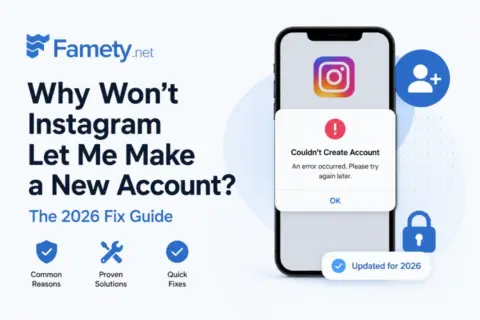
Instagram usually blocks a new account for one of six reasons: you already have 5 accounts linked to the same email or phone number, you have 5 accoun...
For example, if you notice that carousel posts get more saves and shares than single photos, you can post more carousels. If reels consistently get higher reach, you might make them a larger part of your strategy.
Using Audience Demographics
Instagram analytics also reveal audience demographics. This includes age, gender, location and active times. Knowing where your followers live and when they are online helps you schedule posts for maximum impact.
Audience Schedule Tips
- Post when most of your followers are active
- Use peak hours for major content
- Test different times to find optimal engagement windows
Demographic insights let you tailor content for specific regions or audience groups, making your posts more relevant and effective.
Best Times to Check Analytics
It’s important to check analytics regularly, but the best times to review data are:
- After posting new content
- Weekly to track trends
- Monthly to plan strategy
- After running a promotion or paid campaign
Frequent analysis helps you catch shifts in audience behavior early and adjust before results decline.
Troubleshooting Analytics Issues
Sometimes you may not see analytics for older posts or you may notice anomalies. Here are common reasons:
- Personal account still selected
- App needs updating
- Data delay due to a server issue
If any analytics look missing, try refreshing the app, updating to the latest version or switching account types again.