YouTube does not have a search box for comments, so the fastest way to find a comment is a free YouTube comment finder such as Hadzy, CommentShark or YCF: paste the video link, load the comments and search by keyword or username. To find comments you wrote yourself, use your YouTube comment history instead, and to search comments on your own channel, use the filter in YouTube Studio.
Below you will find the method that fits each situation, step by step, plus the limits of each tool.
Which Method Should You Use?
| What you want to find | Best method | Login needed |
|---|---|---|
| A comment on any public video | Online comment finder (Hadzy, CommentShark, YCF) | No |
| A comment while you watch, without leaving YouTube | YCS browser extension | No |
| Comments you wrote yourself | YouTube comment history | Yes |
| Comments on your own channel’s videos | YouTube Studio | Yes |
| A specific word on a page with few comments | Your browser’s Find tool (Ctrl+F or Cmd+F) | No |
How to Search Comments on Any YouTube Video
Online comment finders load every public comment on a video through YouTube’s data, then let you search and sort them. They are free and work in any browser, including on a phone.
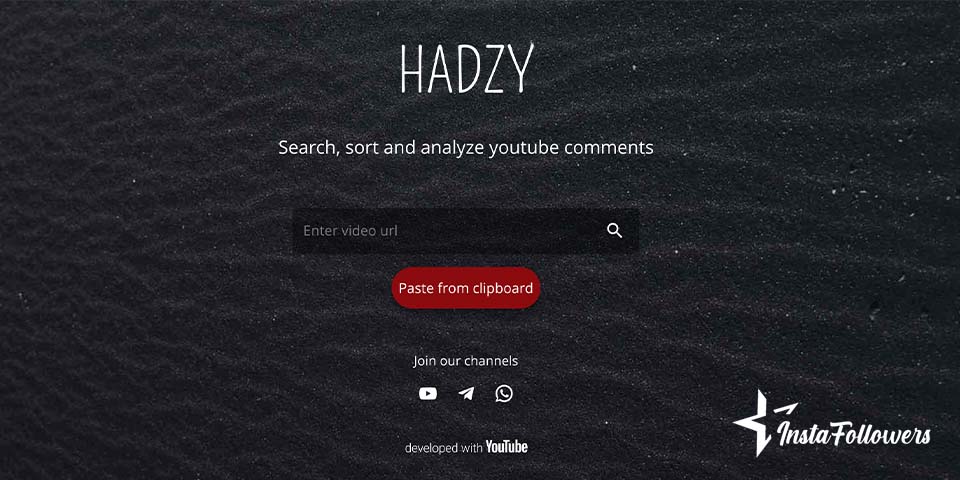
Hadzy
Hadzy is one of the oldest free comment search tools and needs no account.
- Copy the link of the YouTube video.
- Go to hadzy.com, paste the link and tap the search icon.
- Click Load data and wait while Hadzy collects the comments. Videos with many thousands of comments take longer.
- Click View comments.
- Type a keyword or username in the search field, or sort by likes, replies or date.



Hadzy also shows simple statistics, such as when most comments were posted and which commenters were most active.
CommentShark
CommentShark works the same way and focuses on speed. Paste the video link, wait for the comments to load and search by keyword. Results can be sorted, so you can bring the most liked or the newest comments to the top.
YCF (YouTube Comment Finder)
YCF, available at ytcomment.kmcat.uk, is a lightweight finder that searches comments and replies by keyword. Paste the video link, type your search term and the matching comments appear in a list with links back to the video.
Limits of Online Comment Finders
- Public videos only. These tools cannot read comments on private or unlisted videos they cannot access, or on videos with comments turned off.
- Very large videos are slow. A video with hundreds of thousands of comments can take several minutes to load, and some tools stop at a fixed number.
- Deleted and held comments are missing. Comments removed by the creator or held for review do not show up.
- Never sign in with your Google password. None of these tools needs your account to search public comments. Skip any tool that asks for it.
How to Search YouTube Comments With a Browser Extension
If you search comments often, an extension saves you from copying links. The most popular one is YCS, YouTube Comment Search, available for Chrome and Firefox.
- Open the Chrome Web Store or Firefox Add-ons and search for YCS YouTube Comment Search.
- Click Add to Chrome (or Add to Firefox) and confirm.
- Open any YouTube video. A YCS panel appears above the comments.
- Click Load all, then type a keyword or username in the YCS search field.
YCS can search comments, replies, live chat replays and the video’s transcript. Because the original extension has not always kept up with YouTube changes, a community-maintained version called YCS Continued is also available. If one stops working after a YouTube update, try the other.
How to Find Your Own YouTube Comment History
YouTube keeps a list of every comment you have posted while signed in. This is the fastest way to find something you wrote months ago.
On a computer:
- Sign in to YouTube and click the menu (three lines) in the top left.
- Under You, click History.
- In the right-hand menu, under Manage all history, click Comments.
- Your comments appear newest first. Click any comment to open the video it was posted on.
You can also go straight to youtube.com/feed/history/comment_history.
On the YouTube app:
- Tap your profile picture (You) at the bottom right, then the settings gear.
- Tap Manage all history and choose your Google account if asked.
- Open the Interactions tab and tap Comments and replies.
To search your history by keyword or date, open myactivity.google.com, filter by YouTube and use the search box. It is much quicker than scrolling through years of comments.
How to Edit or Delete Your Comments
From your comment history, click a comment to open it under the video. Tap the three dots next to it and choose Edit or Delete. YouTube has no button to delete all comments at once; you have to remove them one by one.
How to Search Comments on Your Own Channel in YouTube Studio
Creators can search every comment their channel has received without any extra tool.
- Open studio.youtube.com and click Comments in the left menu.
- Choose the Published tab, or Held for review to see comments YouTube filtered.
- Click the filter bar at the top and choose Search, then type a keyword.
- Add more filters if you need them, such as comments that contain a question, comments you have not replied to yet, or comments from subscribers.
This is the best place to find questions you have not answered yet, or feedback that keeps coming up. Studio also lets you reply, pin, heart or hide a commenter straight from the list.
How to Use Your Browser’s Find Tool
For a quick check on a video with a few hundred comments, your browser can do the job.
- Open the video and scroll down so the comments start loading. Keep scrolling until the comments you need have loaded, because YouTube only shows a batch at a time.
- Press Ctrl+F on Windows or Cmd+F on Mac.
- Type the word you are looking for. Matching text is highlighted on the page.
On a phone, open the video in your browser (not the app) and use Find in page from the browser menu. This method only searches comments that are already loaded, and it does not search inside collapsed replies.
How to Find the First Comment on a YouTube Video
YouTube sorts comments by Top or Newest, but it has no option to show the oldest comment first. To find the first comment on a video:
- Paste the video link into Hadzy or CommentShark and load the comments.
- Sort the results by date, oldest first.
- The comment at the top of the list is the first one that is still visible on the video.
Keep in mind that the first comment ever posted may have been deleted by its author or the creator. In that case the tools show the oldest comment that still exists.
Why Searching Comments Matters for Creators
Comment searches are not only for finding one lost reply. Creators use them to:
- Find video ideas. Search for “can you make” or “please do” to see what viewers ask for.
- Spot repeated questions. If the same question shows up again and again, answer it in your next video or pin a reply.
- Check sentiment after a change. Search for words like “audio” or “thumbnail” after you change your style.
- Find your most engaged viewers. Search a username to see everything one person has said across a video.
Comments also matter to YouTube itself. Active comment sections signal that viewers care about a video, and a video with an empty comment section can look abandoned to new visitors. If you want new uploads to start conversations faster, Famety can help you add YouTube comments that get the discussion going. For more on what drives performance, see our YouTube statistics.
Frequently Asked Questions
Can you search comments on YouTube?
Not inside YouTube itself, except in YouTube Studio for your own channel. For any other video, use a free comment finder like Hadzy, CommentShark or YCF, or the YCS browser extension. Paste the video link, load the comments and search by keyword or username.
How do I find my own comments on YouTube?
Open YouTube, go to History and choose Comments under Manage all history, or visit youtube.com/feed/history/comment_history. On the app, go to Manage all history, then Interactions, then Comments and replies.
Can I search YouTube comments by username?
Yes. Hadzy, CommentShark and the YCS extension let you search by username on a single video. There is no tool that can list every comment one person has posted across all of YouTube, unless it is your own account’s history.
Why can’t I find a comment I posted?
The comment may have been deleted by the creator, held for review, or hidden by YouTube’s spam filter. It can also be missing if you posted it while signed in to a different account. Check your comment history for each account you use.
Are YouTube comment finders safe?
Reputable tools like Hadzy and YCS only read public comments and do not need your login. Avoid any comment finder that asks for your Google password or permission to manage your YouTube account.
Can I find comments on a private video?
No. Comment finders can only read comments on public videos. If you own the private video, you can see and search its comments in YouTube Studio.