- Muting someone on Instagram hides their posts, stories, or messages without unfollowing or notifying them.
- You can mute directly from a profile, post, story, or DM, depending on how you want to control visibility.
- Muting only affects what you see, your profile, messages, and connection remain completely unchanged.
- Instagram offers flexible mute options including posts, stories, and message notifications separately.
- You can unmute anytime from profile settings, restoring posts, stories, and notifications instantly.
Muting someone on Instagram lets you stop seeing their content without unfollowing them. It helps you clean your feed while keeping the connection intact. This is especially useful when someone posts too frequently but you don’t want to create tension.
Instead of removing the person completely, muting gives you control over what appears in your daily experience. You can stay connected, keep access to their profile, and still avoid content that feels repetitive or distracting. This makes it one of the most practical tools for managing your feed without making visible changes to your account relationships.
Quick Answer: How to Mute Someone on Instagram
To mute someone on Instagram, go to their profile, tap the “Following” button, then select “Mute.” From there, choose to mute posts, stories, or both. The change is immediate and the person will not be notified.
This is the fastest and most direct method, and it works consistently across devices. Since muting is reversible, you can always bring their content back later.



Fastest way to mute posts and stories
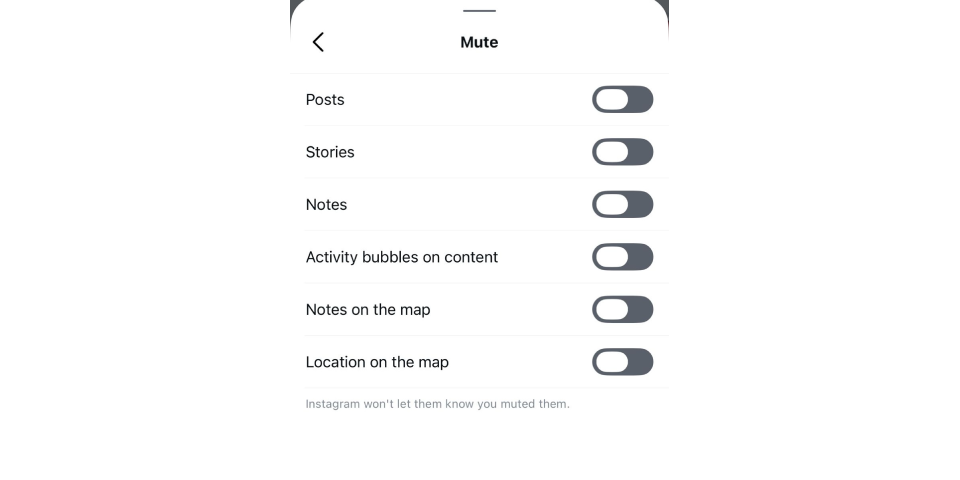
The quickest method is directly from the user’s profile. Follow these steps:
- Go to the profile of the person you want to mute
- Tap the “Following” button under their bio
- Select “Mute” from the menu
- Turn on Posts, Stories, or both depending on your preference
Once applied, their content disappears from your feed without affecting your follow status.
Mute options available (posts, stories, messages)
Instagram gives you multiple mute options, each controlling a different type of content:
- Posts: Their posts no longer appear in your main feed, but you can still view them manually
- Stories: Their stories are removed from the top bar while posts remain visible
- Messages: Notifications from their chat are muted, but messages are still accessible
These options can be combined or used separately, allowing you to customize your feed exactly the way you want.
How to Mute Someone from Their Profile
Muting directly from a profile is the most reliable and commonly used method. It gives you full control over what you want to hide while keeping the process simple and reversible. This approach is also aligned with Instagram’s official flow, making it the safest option across devices.
When you mute someone from their profile, you are not removing them from your network. You are only adjusting what appears in your feed. This is especially useful if you want to maintain relationships while reducing content clutter.
Step-by-step muting from the profile
To mute someone from their profile, follow these exact steps:
- Open Instagram and go to the profile of the person you want to mute
- Tap the “Following” button located under their bio
- Select the “Mute” option from the menu that appears
- You will see toggle options for different content types
- Turn on the options based on what you want to mute
This method applies instantly, and there is no notification sent to the other person. You can repeat the same steps anytime to reverse the action.
How to choose posts, stories, or both
Once you open the mute settings, Instagram lets you decide exactly what you want to hide. Each option works independently, giving you flexibility:
- Posts only: Use this if you want to stop seeing their feed content but still keep their stories visible
- Stories only: Ideal when someone shares too many stories but you still want to see their posts
- Both posts and stories: This completely removes their content from your feed and story bar without unfollowing
Choosing the right combination depends on how you want to manage your feed. Many users start by muting stories first, then adjust further if needed.
How to Mute Someone from Your Feed
You can mute someone directly while scrolling your feed without visiting their profile. This is the fastest way to take action when you see content you no longer want to appear.
To mute someone from your feed:
- Find a post from the account while scrolling
- Tap the three-dot menu in the top right corner
- Tap “Hide” to remove the post
- Select “Mute [username]” from the options
- Choose to mute posts or both posts and stories
This method applies instantly and helps you clean your feed without interrupting your browsing experience.
How to Mute Instagram Stories Only
If someone’s stories are too frequent but you still want to see their posts, you can mute stories only. This keeps your feed balanced without removing the connection.
To mute stories:
- Go to the story bar at the top of your feed
- Tap and hold the person’s profile picture
- Select “Mute” from the menu
- Tap “Mute story” to confirm
After this, their stories will no longer appear in your story bar, but their posts will still be visible in your feed.
How to Mute Someone in Instagram DMs
Muting someone in DMs only affects notifications. It does not hide their posts or stories. This is useful when you want to reduce interruptions without blocking or restricting the user.
To mute messages:
- Open Instagram and go to your messages
- Select the conversation you want to mute
- Tap the person’s name at the top of the chat
- Tap “Mute” in the settings
- Choose to mute messages, calls, or both
Once enabled, you will still receive messages, but you won’t get notifications. The other person will not be notified about this change.
What Happens When You Mute Someone on Instagram
Muting someone on Instagram changes what you see in your feed, but it does not affect your connection with that person. You stay connected, your profiles remain visible to each other, and interactions continue as usual. The only thing that changes is content visibility in your daily experience.
This makes muting a flexible tool. You can clean your feed without unfollowing, blocking, or limiting your account activity.
What you stop seeing (posts, stories)
When you mute someone, certain types of content are removed from your view:
- Their posts stop appearing in your main feed
- Their stories disappear from the top story bar
- Their content is no longer pushed into your regular scrolling experience
This helps reduce clutter and gives you more control over what you consume daily.
What stays the same (profile, messages, visibility)
Muting does not affect your relationship or account structure in any way:
- You still follow each other
- Their profile remains fully accessible
- You can view their posts anytime by visiting their profile
- Messages and conversations remain active
- They can still see and interact with your content
Because of this, you can continue to grow your account and boost your Instagram follower count without interruption. Using the mute feature does not limit your follower growth in any way.
Will they know if you mute them
Instagram keeps muting completely private. The other person will not be notified.
- No notification is sent when you mute someone
- There is no visible indicator on their side
- They cannot check who muted them
The only possible change is reduced engagement, but this is not something they can directly track or confirm.
Mute vs Unfollow vs Restrict: Key Differences
Instagram offers different ways to control your experience, but each option works very differently. Muting is the lightest action, while unfollowing and restricting change how you interact with someone more directly.
Understanding the difference helps you choose the right action based on your situation instead of making unnecessary changes to your connections.
When muting is the better option
Muting is the best choice when you want to reduce visibility without affecting the relationship:
- You want to stop seeing someone’s posts or stories without unfollowing
- You want to avoid awkward situations or social tension
- You still want access to their profile and content when needed
- You want a cleaner feed without changing your follower list
- You are managing a busy feed with too many active accounts
In most everyday situations, muting is enough. It gives you control without creating any visible change for the other person.
When to use restrict or unfollow instead
There are cases where muting is not enough, and stronger actions make more sense:
- Use restrict when you want to limit someone’s interaction with your account: Their comments become less visible, and their messages are filtered
- Use unfollow when you no longer want any connection: Their content disappears completely, and your follow relationship ends
- Use restrict when someone is interacting too much in an unwanted way: Use unfollow when you want a clear and permanent separation
These options go beyond feed control. They change how you interact with the account, so they should be used more intentionally compared to muting.
How to Unmute Someone on Instagram
Unmuting someone on Instagram restores their content back into your feed and notifications. The process is simple and follows the same logic as muting. Since muting does not remove any connection, reversing it takes only a few taps.
You can unmute posts, stories, or messages separately, depending on what you muted before.
Unmute from profile settings
The most reliable way to unmute someone is from their profile:
- Go to the profile of the person you muted
- Tap the “Following” button under their bio
- Select “Mute” from the menu
- Turn off the toggles for posts, stories, or both
Once you disable the mute options, their content will start appearing again in your feed and story bar. This change is immediate, although it may take a short time for the feed to refresh naturally.
Unmute stories and messages
If you muted only specific content types, you can unmute them individually:
- To unmute stories: Go to the person’s profile, tap their profile picture, open story options, and select “Unmute story”
- To unmute messages: Open your DMs, enter the conversation, tap the person’s name, then turn off message or call mute
- To restore full visibility: Disable all mute toggles so both posts and stories return to normal
Unmuting gives you full control again. You can switch between muted and unmuted states anytime without limits, and the other person is never notified of these changes.